

Use AI Credits
With AI credits, you can use supported models from different providers without adding API keys. Install one of these providers from Integrations > Model Provider (or the Marketplace), and its models are ready to use. See AI Credits for credit costs and usage rules.Use Your Own API Key
Create an API key in the provider’s account or developer console, then add it to Dify to access models through that account.Only the workspace owner and admins can add or manage provider API keys.
- Go to Integrations > Model Provider.
- Find the provider. If it is not installed, select it under Install model providers or find it in the Marketplace.
- Click Add API Key, enter the key, and complete any other fields required by the provider.
Add a Custom Model
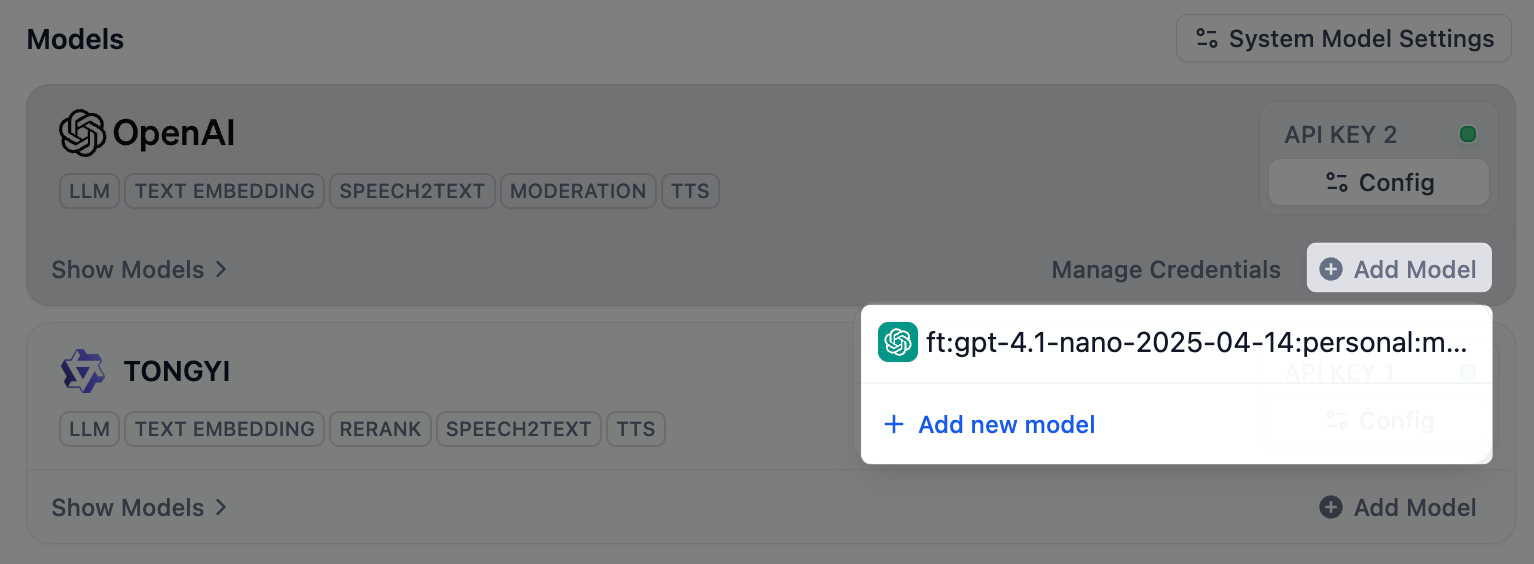
A provider’s models are ready as soon as you connect it, so you only add one by hand when the model you need isn’t listed, such as a brand-new or fine-tuned model. Click Add Model on the provider’s card, then complete the model details and credentials in the form. Required fields depend on the provider and model. Providers that serve only a fixed set of models don’t offer this option.If the model you add matches the name and type of an existing one, Dify attaches the new API key to that model instead of creating a duplicate.
Choose the Models Apps Use by Default
Apps and nodes that don’t pick a model fall back to your workspace defaults. Click Default Models at the top-right corner to set one for each job:- System Reasoning Model: the default for general LLM tasks.
- Embedding Model: indexes and retrieves knowledge base content.
- Rerank Model: reorders retrieval results by relevance.
- Speech-to-Text Model: turns audio into text.
- Text-to-Speech Model: turns text into audio.
Manage API Keys
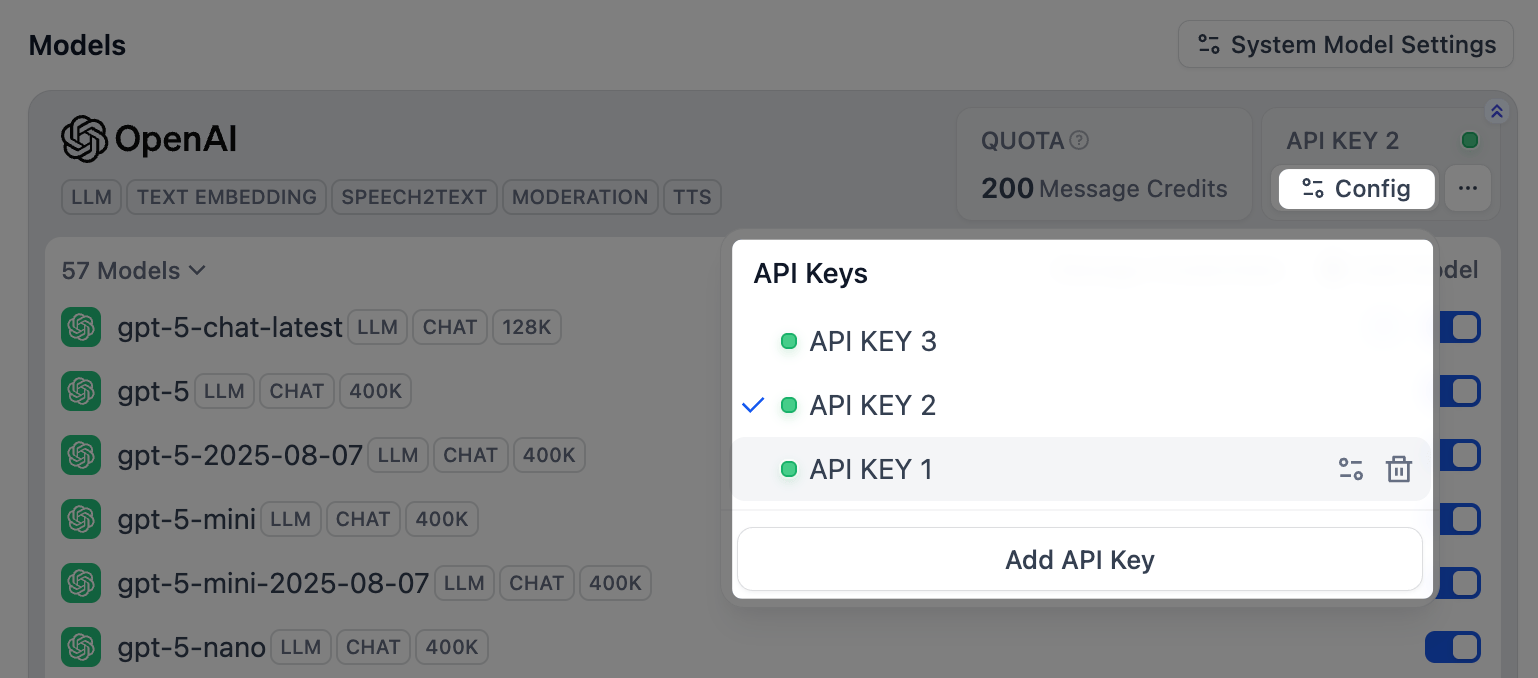
Add more than one API key to a provider when you need to switch between provider accounts or configure load balancing for a model.-
For the models listed on a provider card, click Configure on the card to manage the API keys they share.
-
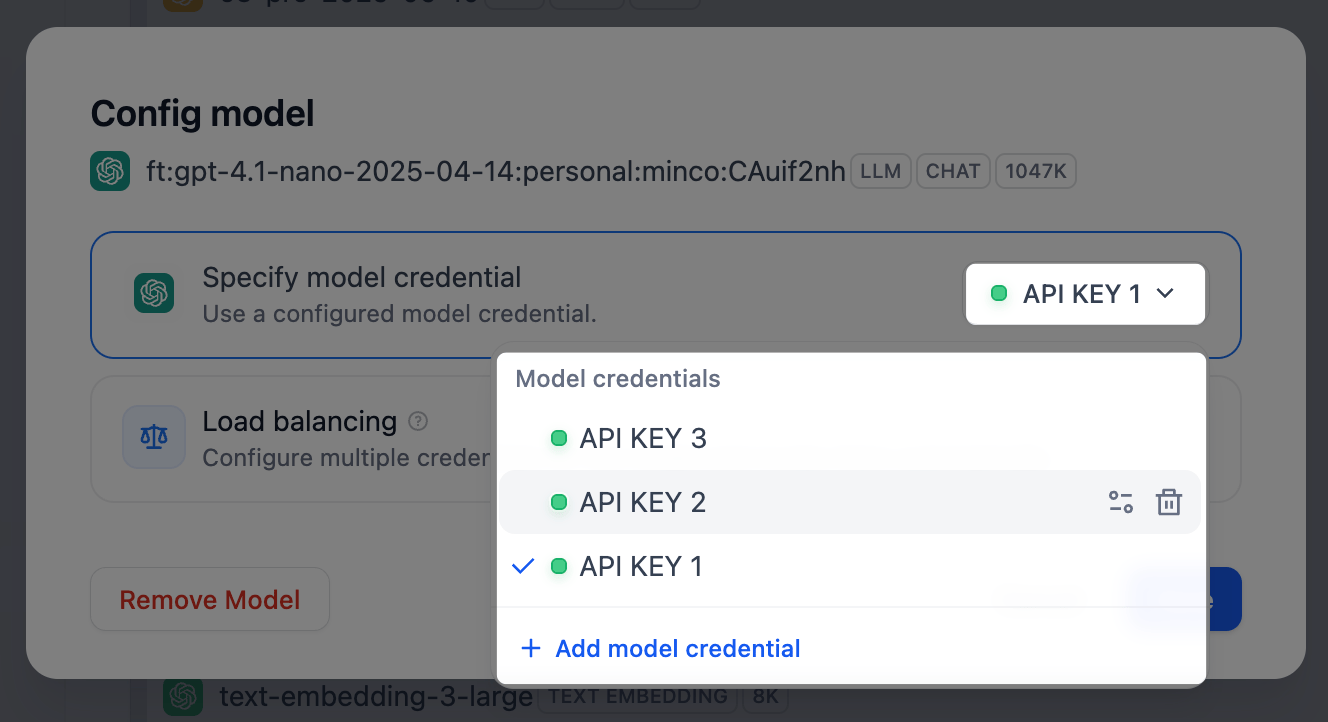
For a custom model you added, click Configure on that model to manage its own API keys.
To view every custom model’s API keys in one place, click Manage Credentials on the provider card.

 API keys stay here even after the custom model is removed, so you can re-add the model later without re-entering them.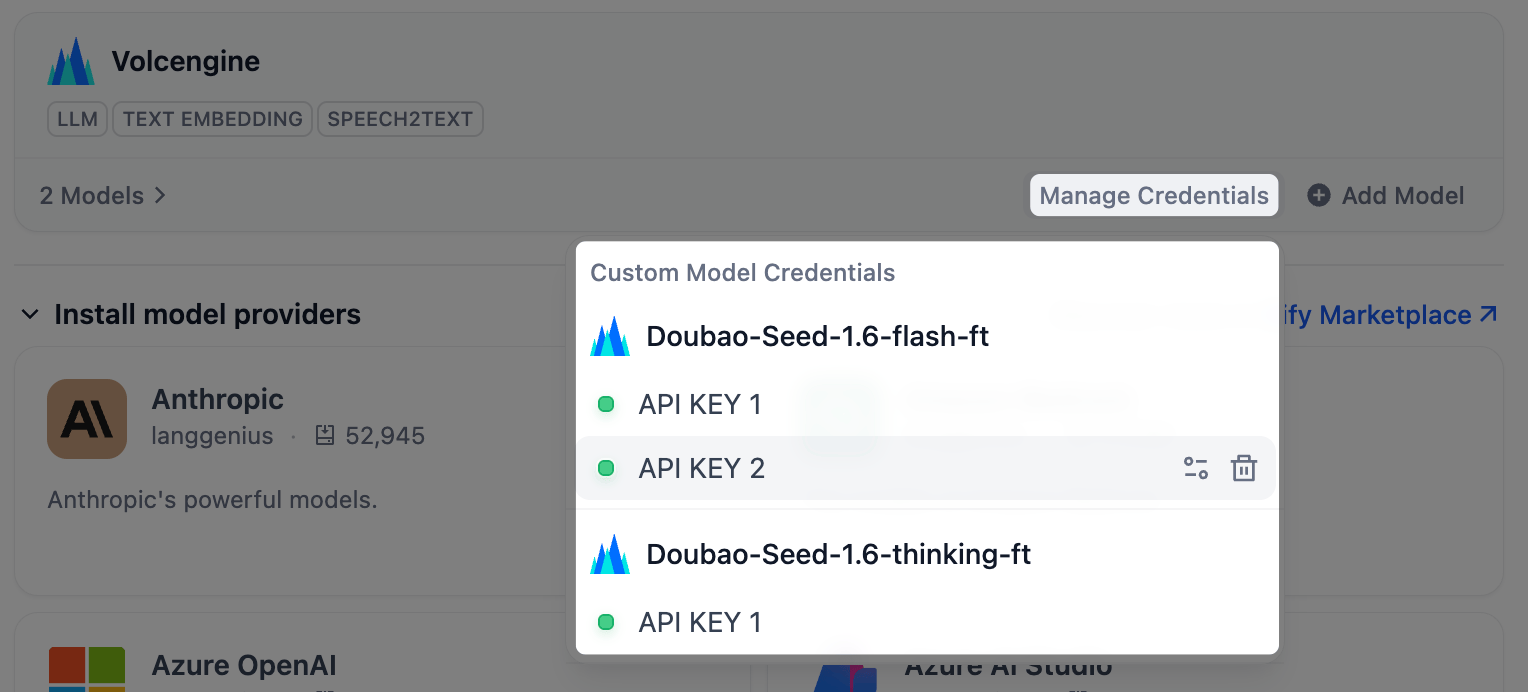
Spread Requests Across API Keys with Load Balancing Professional Team
When one API key handles many requests at once, it can hit the provider’s rate limit and start failing. Use load balancing to spread requests across several API keys for the same model, so no single API key becomes the bottleneck. Dify rotates through the API keys in turn and rests any that hits its limit for a minute before trying it again.- Find the model in the list, click Configure, and select Load balancing.
-
Click Add credential to add API keys to the pool.
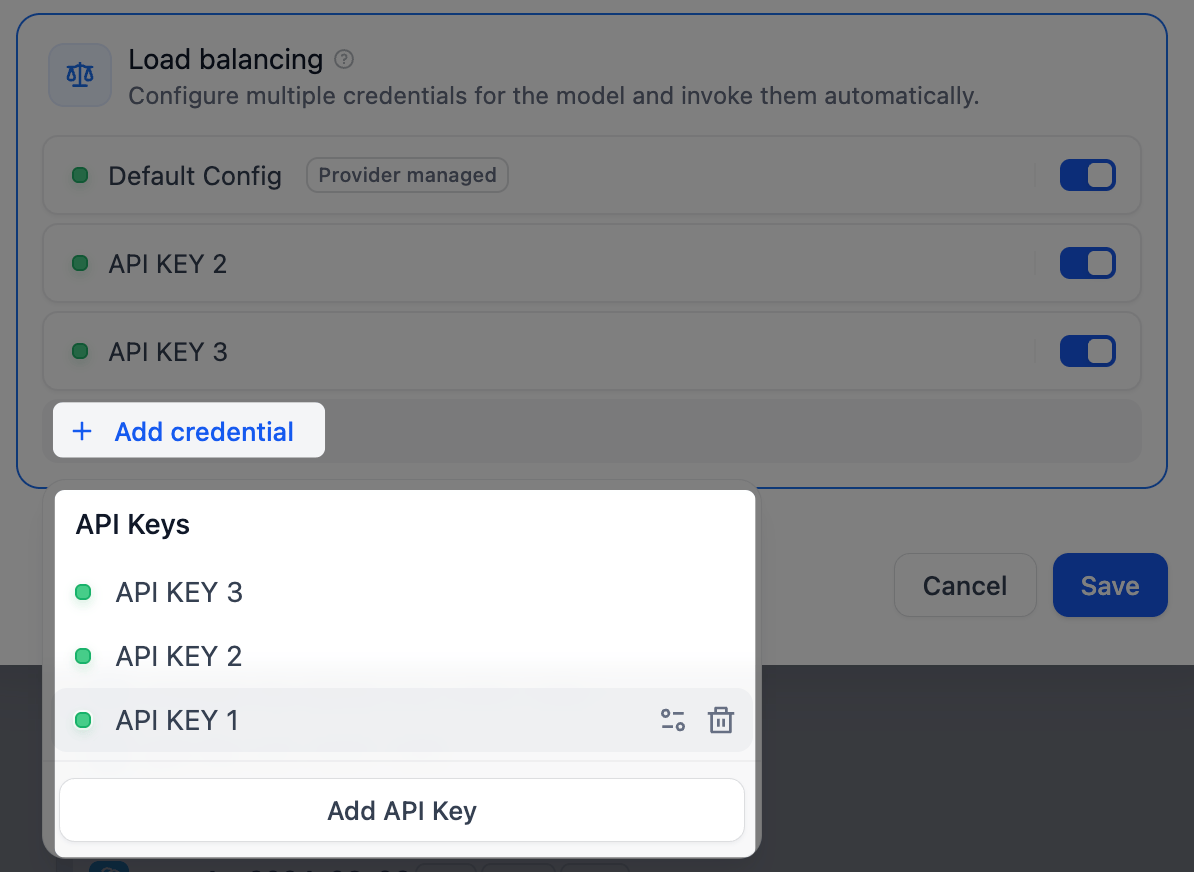
- Turn on at least two API keys, then click Save. A model using load balancing shows a marker in the list.
Switch back to a single API key anytime; your load balancing setup is kept for later use.